

Connect Wisp to Telegram in 5 Minutes
Wisp can read, search, and send messages in your Telegram chats — post summaries to the team group, find that link someone dropped last week, DM you updates.
Privacy notes
- It acts as you. Anything Wisp reads or sends in Telegram happens under your account. Keep that in mind for sensitive chats — and for anything you'd hesitate to send yourself.
- Revoke anytime: Settings → Devices → terminate the session. Your
api_id/api_hashalone don't grant access without an active login. - Guard the
api_hash— it identifies your app; combined with a login it's the key to the door. Don't paste it in screenshots, repos, or shared docs. - Processing still runs through Wisp's usual pipeline: de-identified in the confidential environment, no training on your conversations, history encrypted and local.
- Only use Telegram connectors whose source you trust; Wisp runs them with your credentials.The Telegram connector runs entirely on your machine. Your session key sits in a local encrypted database, and every request goes straight to Telegram’s servers, so Wisp never sees the traffic and has no way to open the account.
- Telegram learns the same things it would learn if you used the official app, which is expected: you are signed into your own account, so there is nothing to anonymise. The encryption scheme is open source even though the app is not.
- Secret chats are out of reach of the integration, same as they are for most third-party clients.
What you get
"Search my chats for the Figma link Sara sent last week"
"Post today's standup summary to the team group"
"Send me a DM when the build finishes"
Wisp connects to Telegram as your own account (via the official Telegram API) — so it works in any chat you're already in. No bot to create, nothing to add to groups.
How it works (30-second version)
The Telegram connector uses your personal API credentials ( api_id + api_hash) from my.telegram.org — the developer keys Telegram issues for your account. Wisp signs in once with your phone number, and from then on talks to Telegram through the official API.
You → Wisp → Telegram connector (your api_id/api_hash + login session) →
Telegram API → your chats
⚠️ Know what you're granting
This is a connection to your personal account, not a limited bot. Wisp can read and send in chats your account can see, and messages it sendsappear from you. If you want a narrower, bot-scoped integration instead, that's a different (more involved) setup — for most people the account connection with the habits in the Privacy section below is the right trade-off.
Part 1 — Get your API keys (once, ~2 minutes)
-
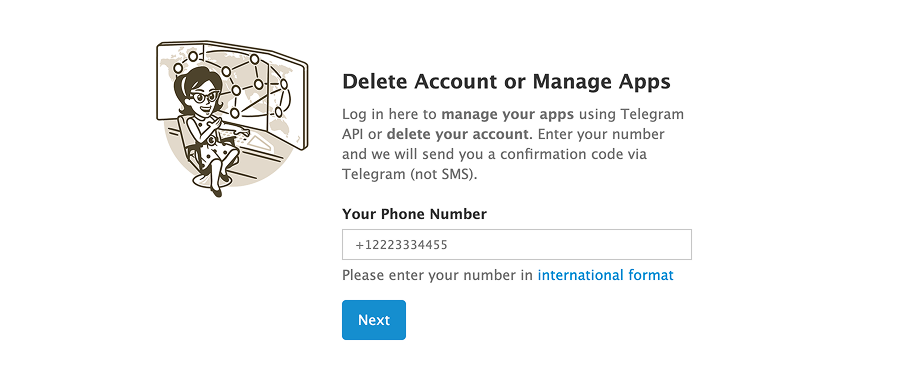
Go to my.telegram.org and sign in with your phone number
-
Telegram sends you a login code in your Telegram app — enter it

-
Open "API development tools"
-
Create an app — the app name and short name can be anything (e.g.
wisp/wisp) Note. If you already have an app setup, just use the api_Id and api_hash from that. -
Copy your
api_idandapi_hash
ℹ What are these? They identify your app to Telegram's API — they're not your password and don't grant access by themselves. Access still requires an explicit login (Part 2), which shows up as a session you can revoke anytime.
Part 2 — Connect in Wisp
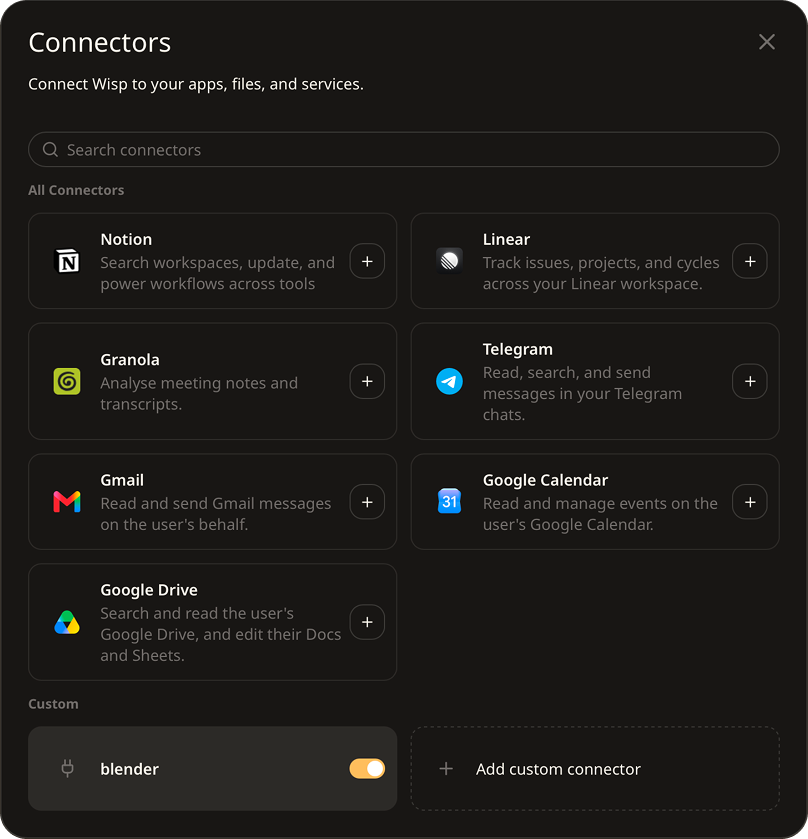
- Wisp → Settings → Connectors → Telegram (built-in connector)
- Paste your
api_idandapi_hash - Click Connect — Telegram sends a login code to your Telegram app; enter it in Wisp (plus your 2FA password if you have one enabled)
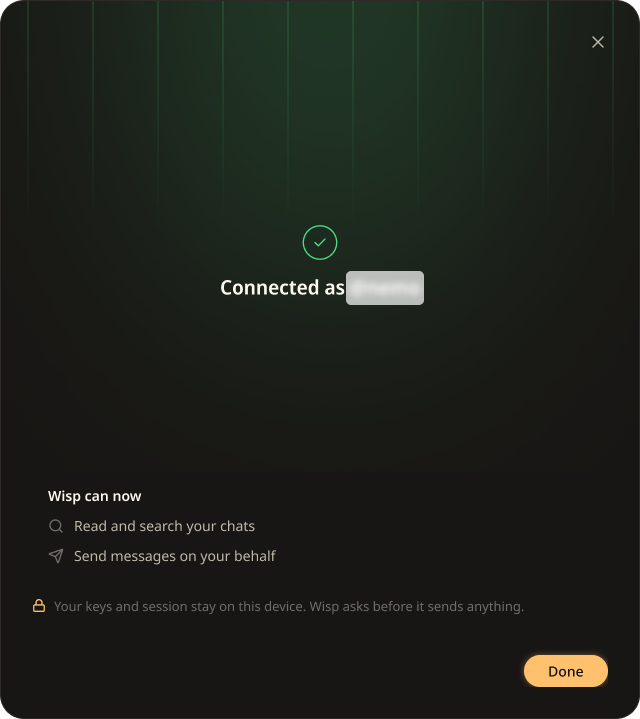
- The connector card shows connected, with its tools: read chats, search messages, send messages.
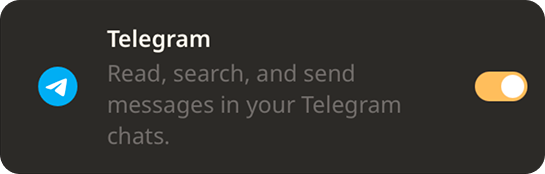
If you're working in project you have to enable the connector:
Enabled in this project → ON
Verify the session exists (good hygiene, 20 seconds)
Open Telegram → Settings → Devices (Active Sessions). You'll see the new session Wisp created. That's your kill switch — tap it to terminate access at any time.
Part 3 — Test it
In a Wisp chat (same project):
"Search my Telegram chats for 'invoice' from the last 30 days."
"Send 'Weekly report is out ✅*' to the team group."*
Wisp will confirm the chat it posted to. First time, it may ask which chat — give it the group name.
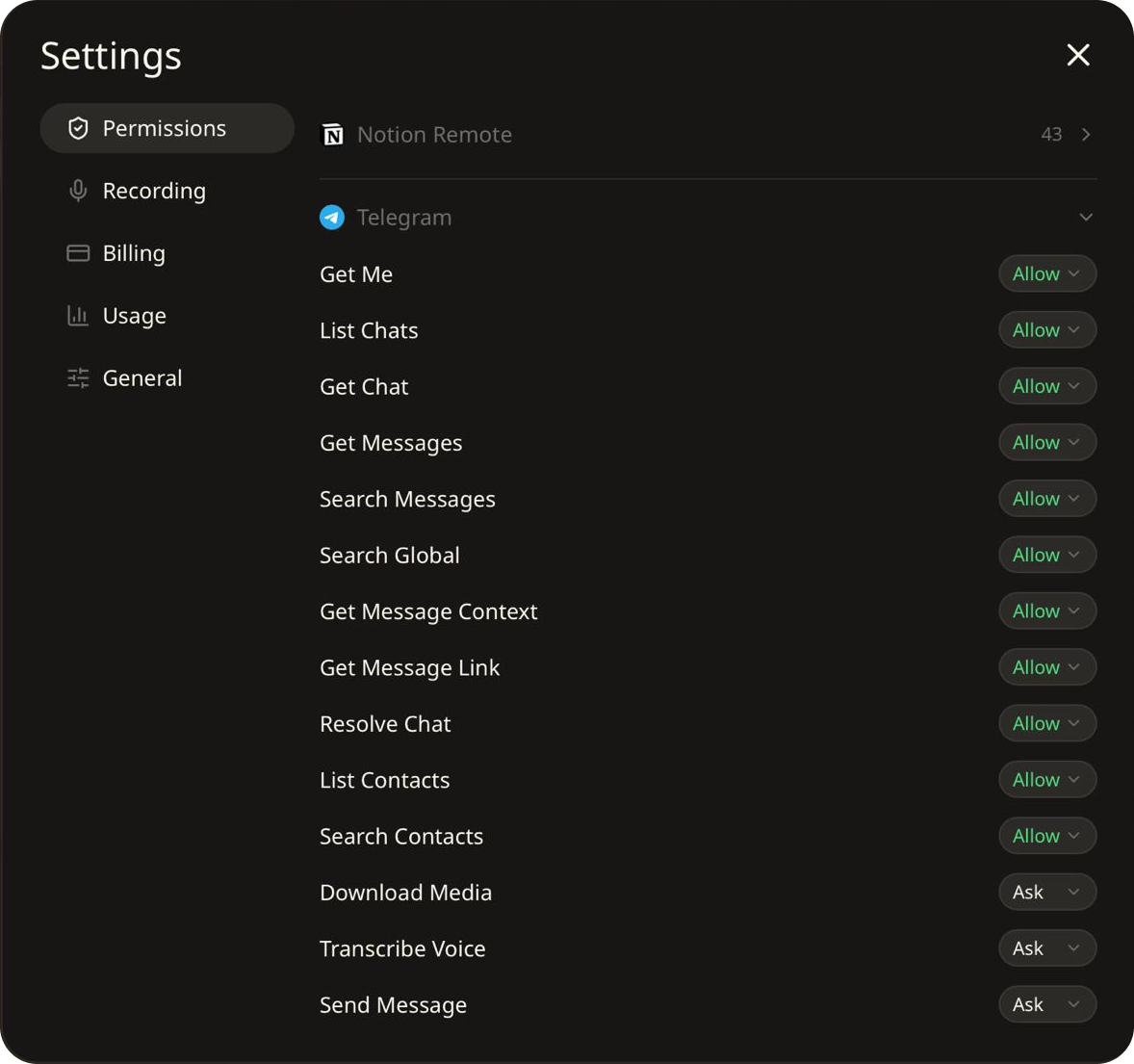
Part 4 -- Check and Set Permissions within the Wisp App
-
Open up your settings within the Wisp app (the small cog wheel in bottom left corner) and scroll down to the "Telegram" section. Open the tab.
-
Check through each of the permissions to set them as you desire. (Ask Wisp about any you want to know more about)
-
Your Telegram + Wisp are connected.
Troubleshooting
| Symptom | Cause & fix |
|---|---|
| Login code never arrives | Check your Telegram app (not SMS) — that's where Telegram sends it. If you're logged out everywhere, request a call/SMS fallback on the login screen. |
| "PHONE_CODE_INVALID" / code rejected | Codes expire fast and are single-use. Request a fresh one and paste it immediately. |
| Asked for a password you don't remember | That's your Telegram 2FA password (Settings → Privacy & Security). Reset via Telegram's recovery email if needed. |
| "API_ID_INVALID" or hash errors | api_id and api_hash swapped or copied with a stray space. Re-copy both from my.telegram.org. |
| Wisp can't find a chat you know exists | Archive/folder visibility — ask Wisp to list your chats first, or search by the chat's exact name. |
| Messages send but to the wrong chat | Set Ask for Send Message tool (Settings → Permissions → Telegram) |
| Connector added but does nothing | Make sure it's connected and enabled in your project |