

Usage, Limits and Long Chats in Wisp
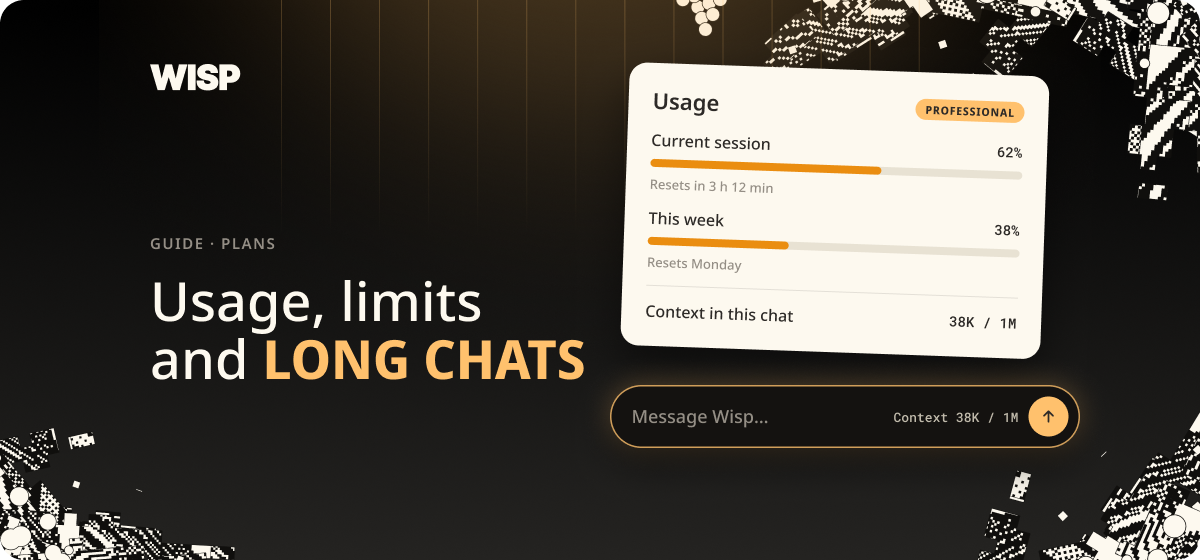
Wisp shows you how much of your allowance you've used, and how full the current chat is. Both are easy to miss. This short guide shows where the numbers are and what to do when one of them gets high.
Usage, Limits and Long Chats in Wisp
Wisp shows you how much of your allowance you've used, and how full the current chat is. Both are easy to miss. This short guide shows where the numbers are and what to do when one of them gets high.
What you get
How much of today's, this week's and this billing period's allowance is used.
When each of those resets.
How much of the current chat's space is taken.
Part 1 — The Usage screen
Click the cog next to your account name, at the bottom of the left sidebar, and choose Usage.
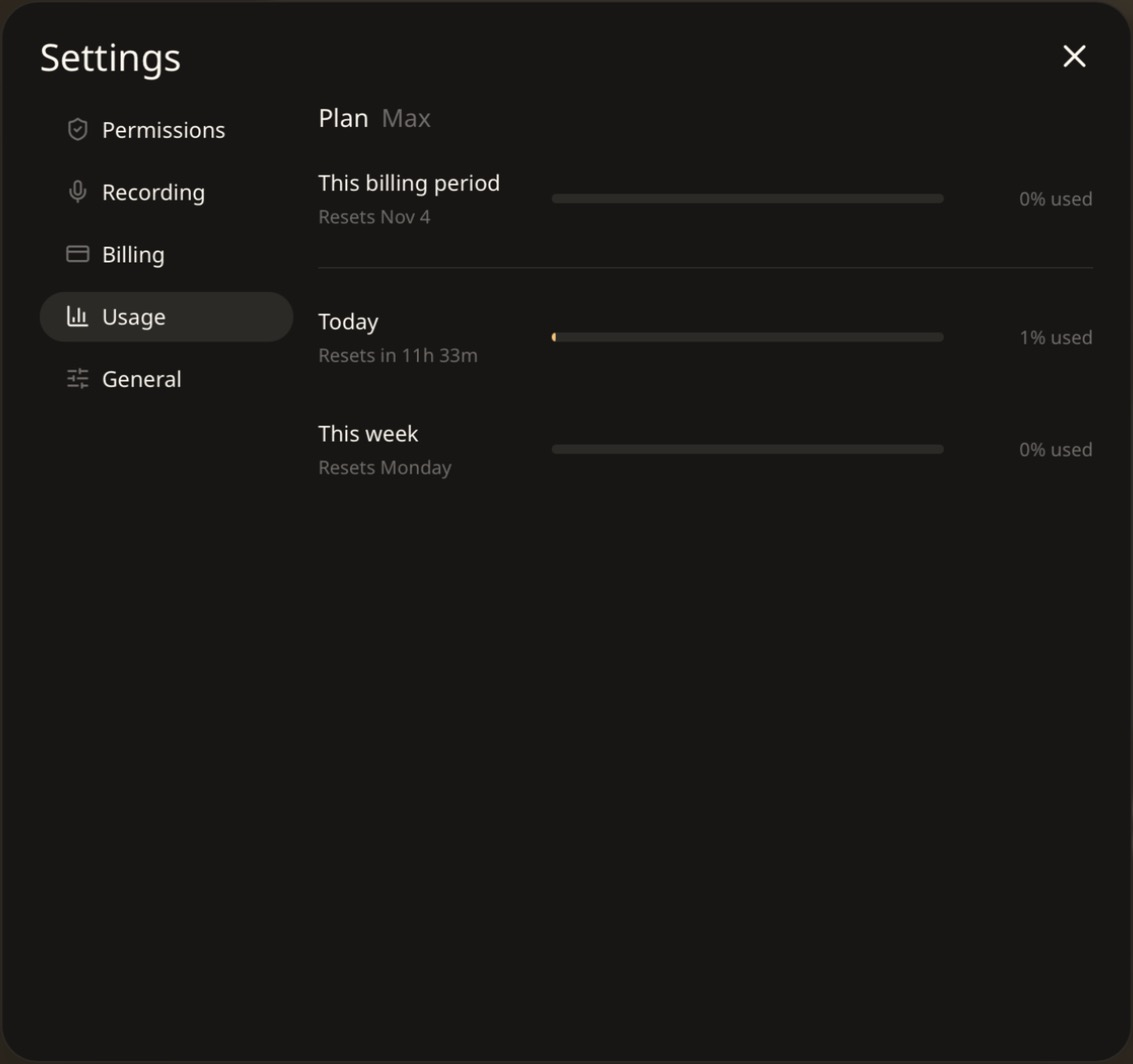
The screen shows your plan and three bars:
- This billing period, with the date it resets.
- Today, with a countdown to the reset.
- This week, which resets on Monday.
Each bar shows a percentage used. The daily and weekly bars are the ones to watch during heavy work.
Part 2 — The context counter
Under the message box, once a chat is under way, there's a small counter.

Context: 12K / 1M means this chat has used about 12,000 units of the roughly one million the selected model can hold at once. The second number depends on the model. Everything in the chat counts towards it: your messages, Wisp's answers, and every file it has read.
Part 3 — Keeping both numbers down
- Start a new chat for a new task. A long chat carries everything that came before it into every reply.
- Point at the file you mean. "Check the lease summary" reads one document. "Check everything" reads them all.
- Use Balanced for everyday work. The model menu itself warns that one of the larger models "eats limits very fast".
- Save the result to a file. A summary in your folder can be picked up by a fresh chat, without the long conversation that produced it.
Troubleshooting
| Symptom | Cause & fix |
|---|---|
| The daily bar is nearly full | Check the countdown on the Usage screen. Switch to Balanced for the rest of the day. |
| The context counter is climbing towards its limit | Ask Wisp to save a summary to a file, then start a new chat from it. |
| You can't find the counter | It appears once the chat has started, to the left of the model name. |
| You want to check your plan | It's named at the top of the Usage screen. Billing is in the same Settings window. |