

Which Model to Pick in Wisp, and When to Turn On Thinking
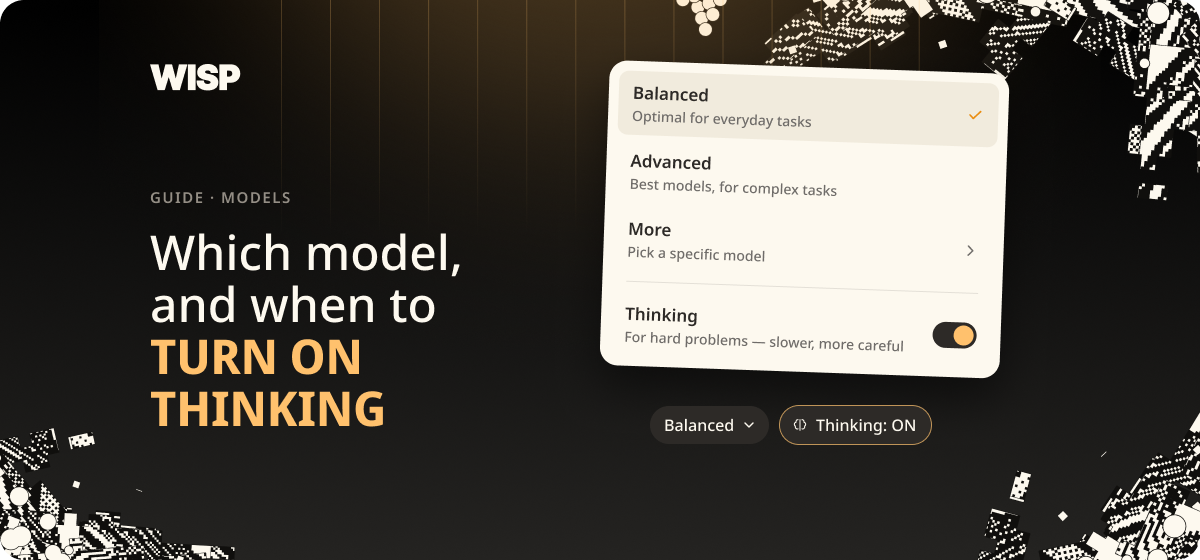
Two controls sit under the message box in Wisp: a model menu and a button marked **Thinking**. Most people never touch either. This guide explains what each option says it's for, and shows one test where the Thinking button changed the answer.
Which Model to Pick in Wisp, and When to Turn On Thinking
Two controls sit under the message box in Wisp: a model menu and a button marked Thinking. Most people never touch either. This guide explains what each option says it's for, and shows one test where the Thinking button changed the answer.
What you get
A short answer for the impatient:
Leave it on Balanced for everyday work.
Switch to Advanced when the task is hard and worth the extra usage.
Turn on Thinking when the question has several steps, especially dates and money.
How it works (30-second version)
The model menu has two presets, Balanced and Advanced, and a list of specific models under More.
Balanced → everyday tasks · Advanced → complex tasks · More → pick a specific model
Thinking is separate. It's a switch that applies to whichever model is selected.
Part 1 — The model menu
Click the model name under the message box.
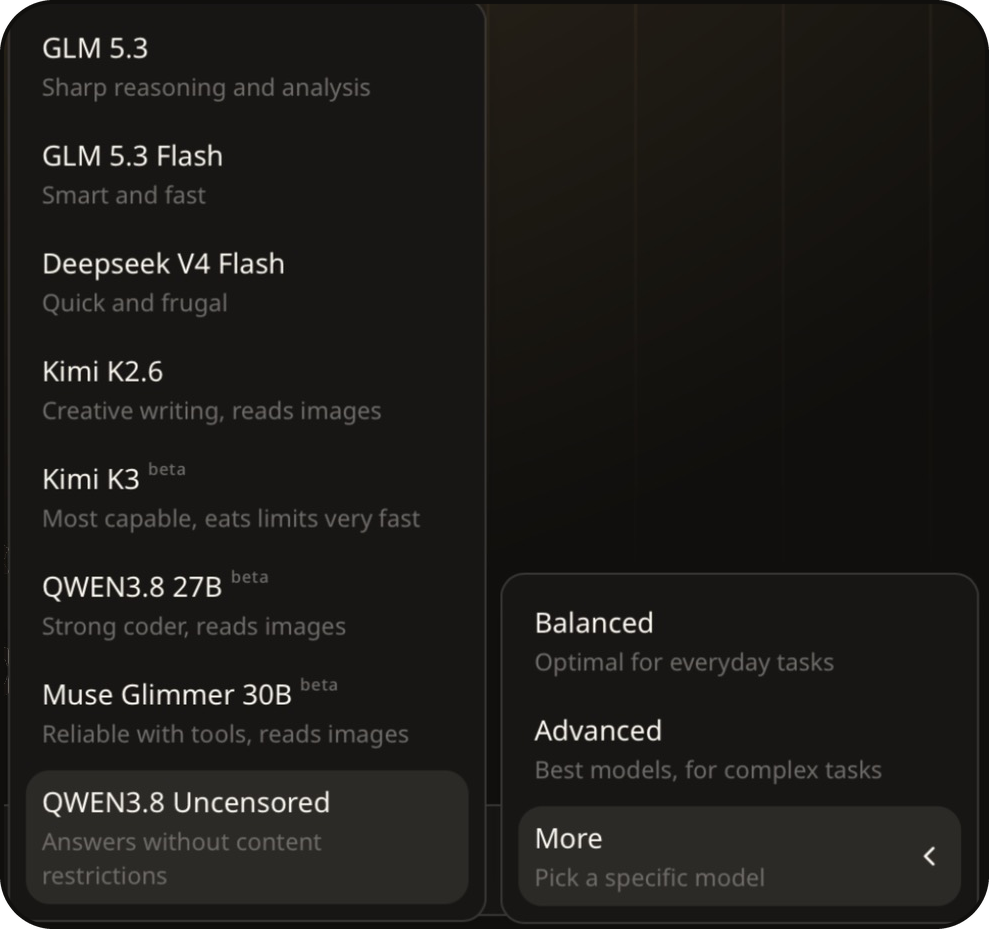
Wisp describes the options like this:
| Option | Wisp's description |
|---|---|
| Balanced | Optimal for everyday tasks |
| Advanced | Best models, for complex tasks |
| GLM 5.3 | Sharp reasoning and analysis |
| GLM 5.3 Flash | Smart and fast |
| Deepseek V4 Flash | Quick, powerful and frugal |
| Kimi K2.6 | Creative writing, reads images |
| Kimi K3 (beta) | Most capable, eats limits very fast |
| QWEN3.8 27B (beta) | Strong coder, reads images |
| Muse Glimmer 30B (beta) | Reliable with tools, reads images |
| QWEN3.8 Uncensored | Answers without content restrictions |
The list changes as models are added and retired, so treat this table as a snapshot from October 2026.
Every guide on this blog so far was tested on Balanced. It read PDFs and photos of receipts, ran calculations and wrote files without trouble.
ℹ About the beta labels Models marked beta are newer and less settled. In one of our tests a beta model's answer came back with stray characters in it. If an answer looks odd, switch back to Balanced and ask again.
Part 2 — The Thinking button
Click Thinking to turn it on. The button lights up, and it stays on for your next chats until you turn it off.

To see what it changes, we asked the same question twice, in two fresh chats, on the Balanced preset. The question needed two documents and some arithmetic:
"Using the Office Lease Summary and the Board Minutes: if we wanted to leave the office in 2027 after all, what exactly would we have to do, by when, and what would it cost us in rent up to the day we leave?"
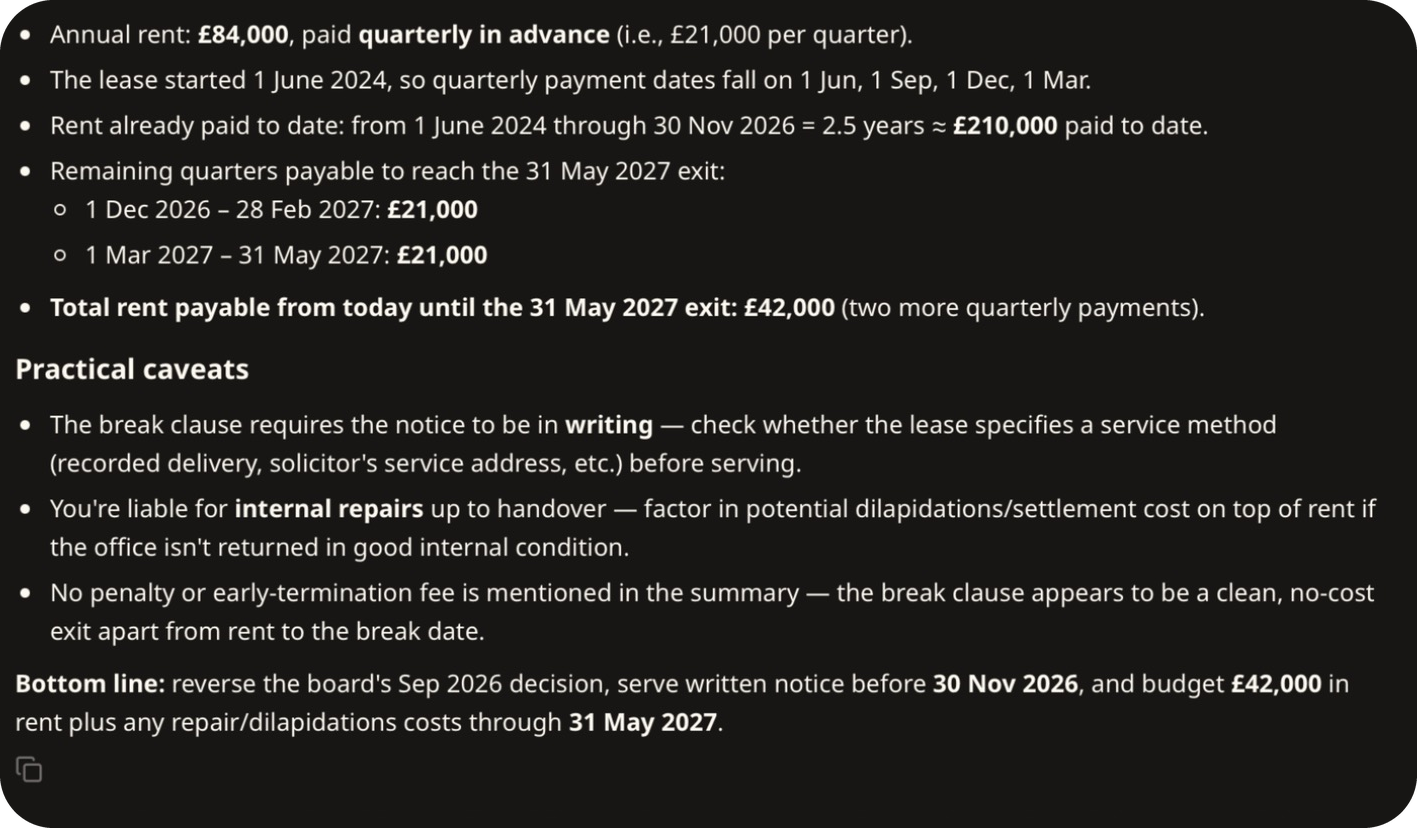
The lease runs at £84,000 a year, paid quarterly in advance, and can be ended on 31 May 2027. So the rent still to pay is two quarters: £42,000.
With Thinking on, Wisp laid out the payment dates and arrived at £42,000.
With Thinking off, it got the dates right, then talked itself into a third payment for a quarter that starts after the lease has ended, and offered £63,000 as the "worst case".
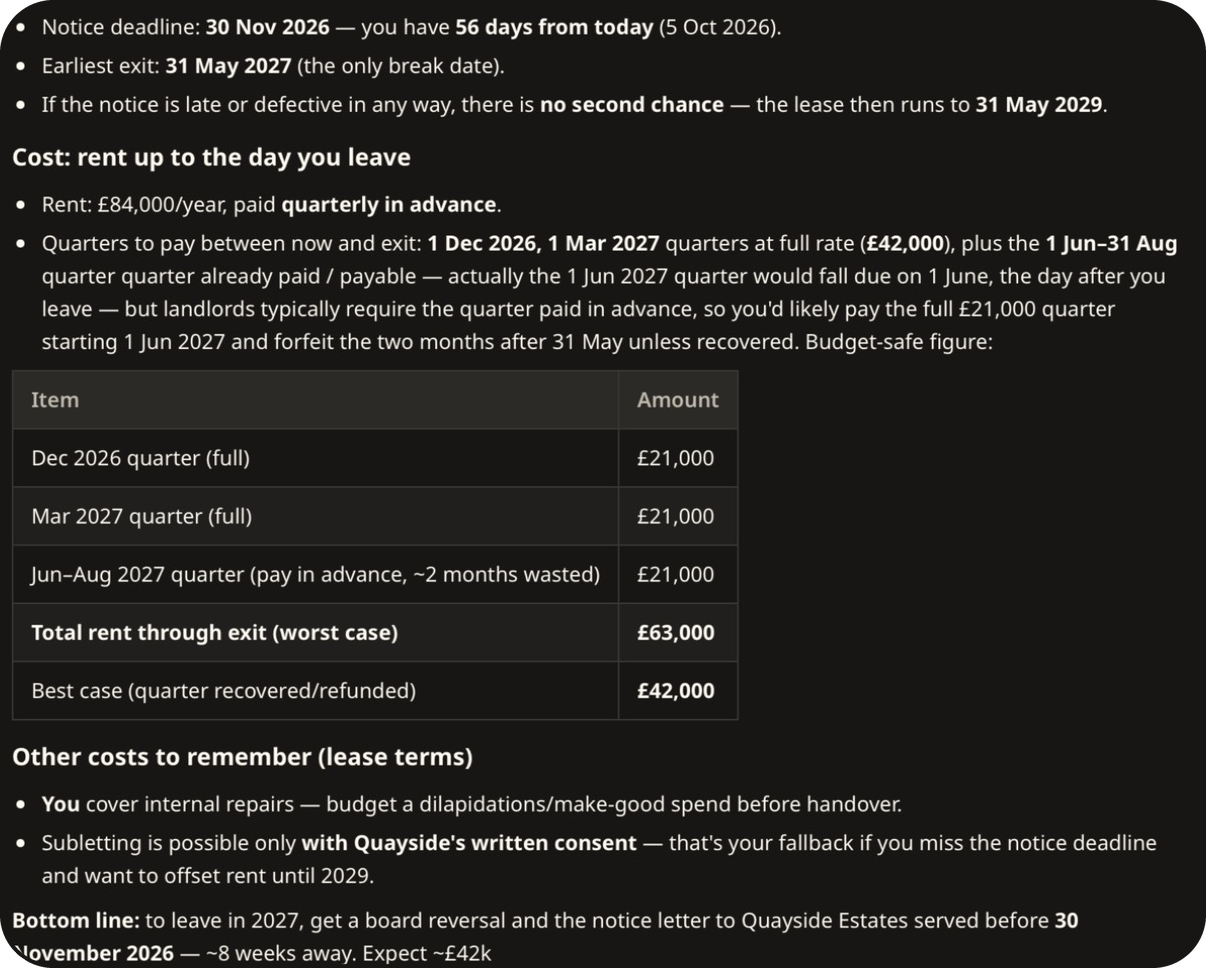
That's one question, asked once each way purely as an illustration, not a benchmark. It does match the general advice: for questions with several steps, particularly sums over dates, Thinking is worth switching on.
A simple rule
| The task | Model | Thinking |
|---|---|---|
| Summaries, emails, quick questions about a file | Balanced | Off |
| Sums, deadlines, anything across several documents | Balanced | On |
| A long, difficult piece of work | Advanced | On |
| Reading a photo or a scan | Balanced, or a model that "reads images" | Off |
Troubleshooting
| Symptom | Cause & fix |
|---|---|
| The answer has stray or garbled characters | You may be on a beta model. Switch to Balanced and ask again. |
| A calculation came out wrong | Turn on Thinking, and ask Wisp to work it out with a calculation. |
| Your usage is going down quickly | Check which model is selected. Wisp's own menu warns that one of them (Kimi K3) "eats limits very fast". |
| Thinking is on and you didn't expect it | It stays on between chats. Click the button again to turn it off. |