

Your First 10 Minutes in Wisp
Wisp works on the files you already have, in a folder you choose, on your own machine. This guide takes a new user from an empty chat to a first finished document: pick a folder, ask a question about what's in it, and have Wisp write something back into it.
Your First 10 Minutes in Wisp
Wisp works on the files you already have, in a folder you choose, on your own machine. This guide takes a new user from an empty chat to a first finished document: pick a folder, ask a question about what's in it, and have Wisp write something back into it.
What you get
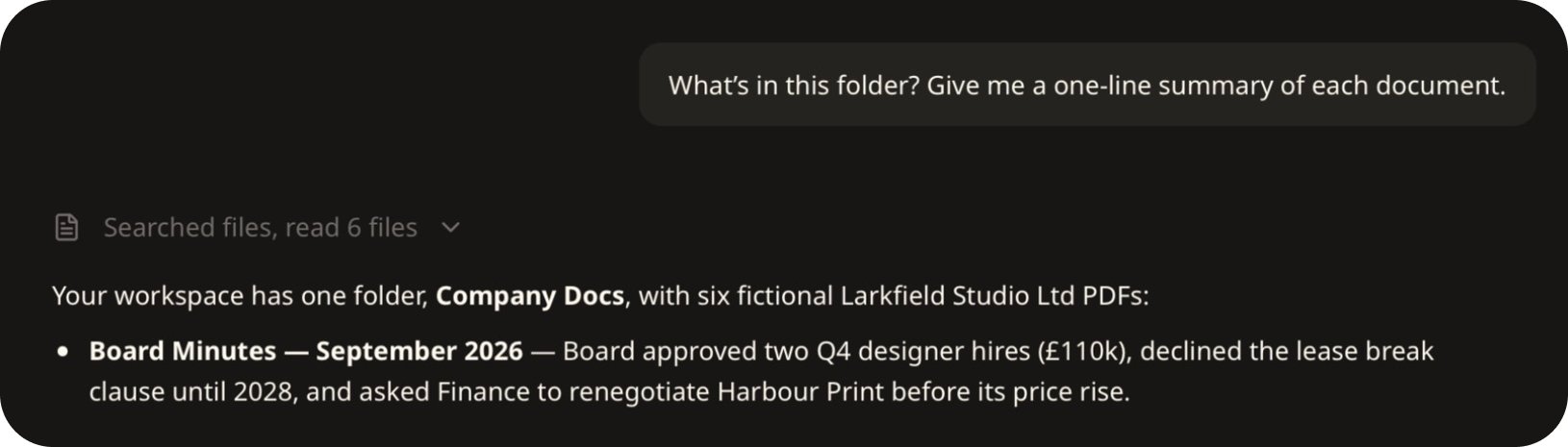
"What's in this folder? Give me a one-line summary of each document."
"Write a one-page welcome note for new starters using these documents, and save it as Welcome.md."
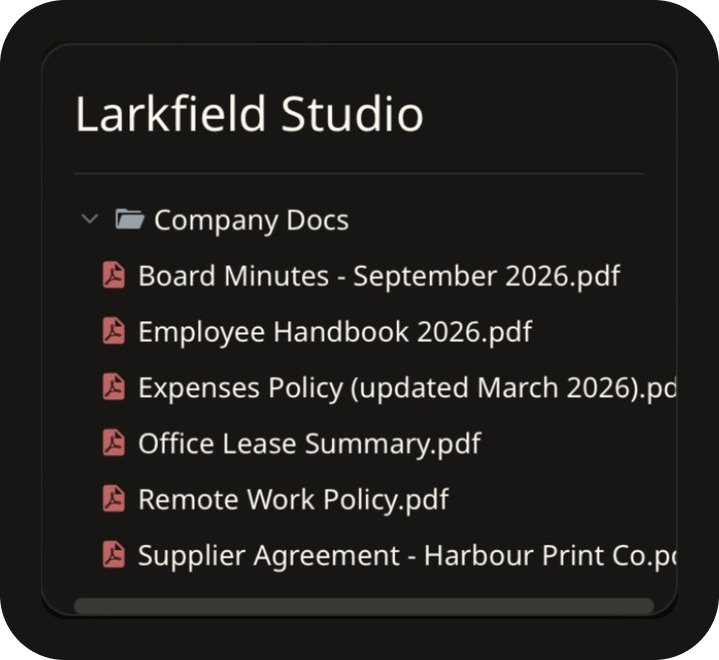
By the end you'll have a project set up, an answer drawn from your own files, and a new document sitting in your folder. The examples here use a made-up company, Larkfield Studio, and six of its internal PDFs.
How it works (30-second version)
A project in Wisp is a folder on your computer. Once you point Wisp at it, Wisp can list and read the files inside, and it asks before it writes anything.
You pick a folder → ask in chat → Wisp reads the files → Wisp asks before it writes → the result lands in your folder
Part 1 — Pick a folder
- Open Wisp and click New Chat.
- Under the message box, click Project.
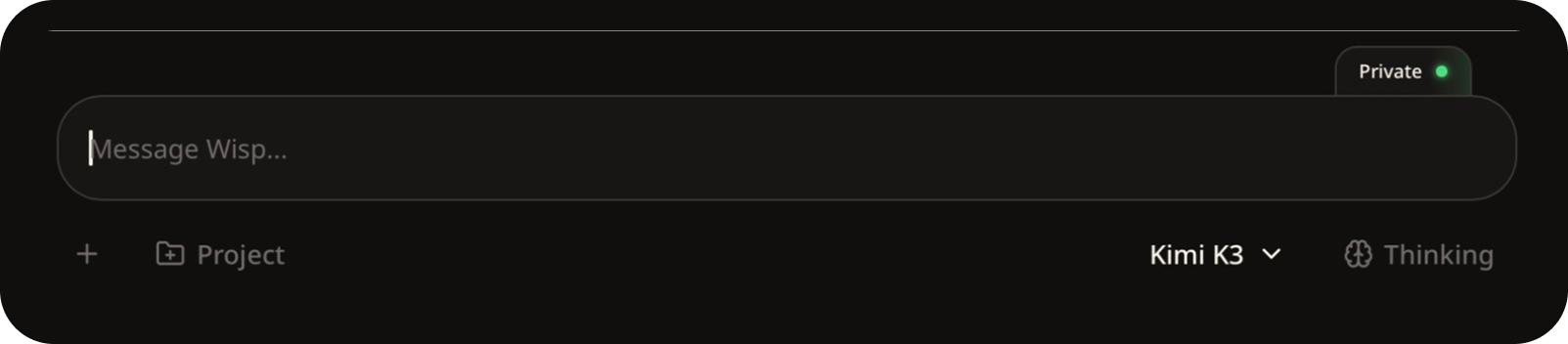
- Pick a folder you've used before, or click Choose a different folder and select one from your computer. Start with a folder you know well, so you can judge the answers.

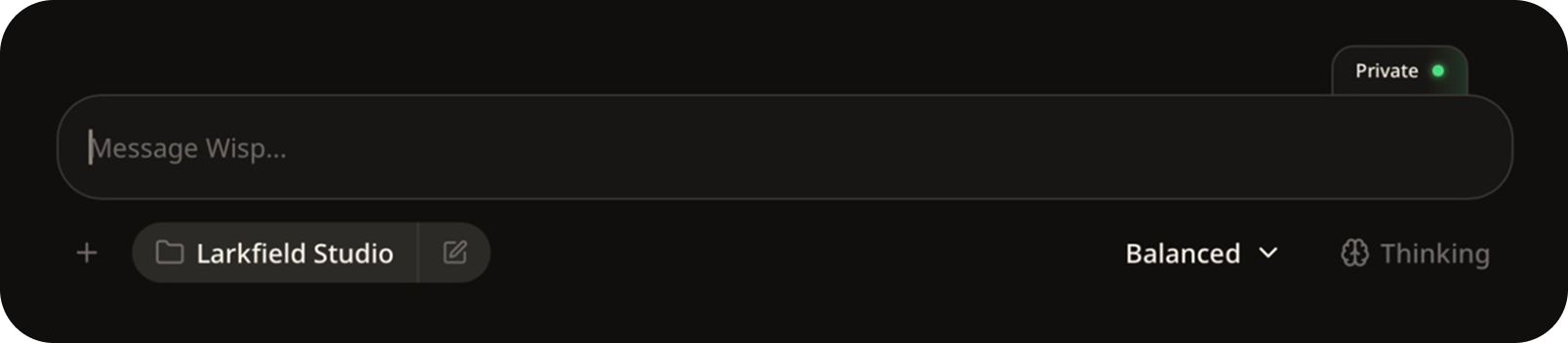
The folder's name now sits under the message box, and the project appears in the sidebar with its chats listed beneath it.
- To see what Wisp can see, click the files icon on the right-hand edge of the chat. It lists everything in the project.
ℹ Which model? The menu on the right, under the message box, chooses the model. Balanced is the everyday option, and the one used for every answer in this guide.
Part 2 — Ask your first question
Type a question about the folder and press Enter:
"What's in this folder? Give me a one-line summary of each document."
Wisp lists the folder, reads the files, and answers. The line above the answer shows what it did, in this case Searched files, read 6 files. Click it to see each step.
Part 3 — Have Wisp make something
Now ask for a document:
"Write a one-page welcome note for new starters using these documents, and save it as Welcome.md."
Before it writes the file, Wisp stops on Awaiting confirmation and shows what it wants to do.
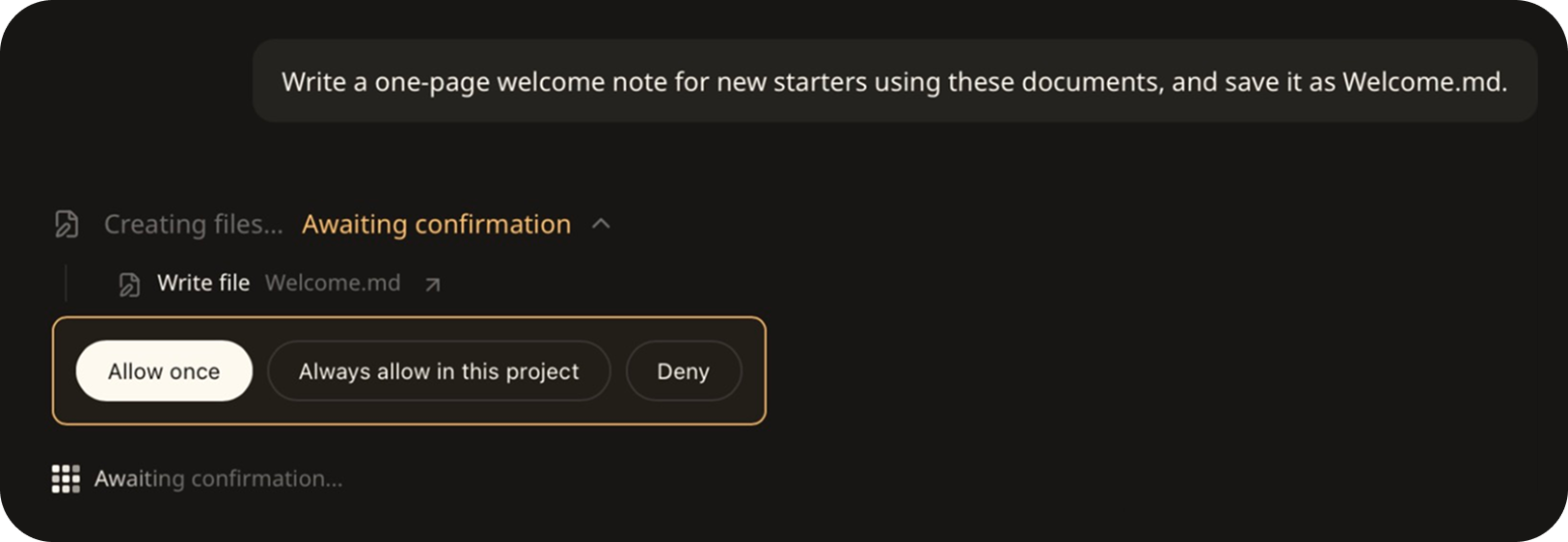
- Allow once: write this file, and ask again next time.
- Always allow in this project: stop asking about file writes in this project.
- Deny: don't write it.
Click Allow once. Wisp saves the file to your folder and tells you what went into it. Here it also explains a judgement call: two documents gave different meal allowances, and it used the newer one.
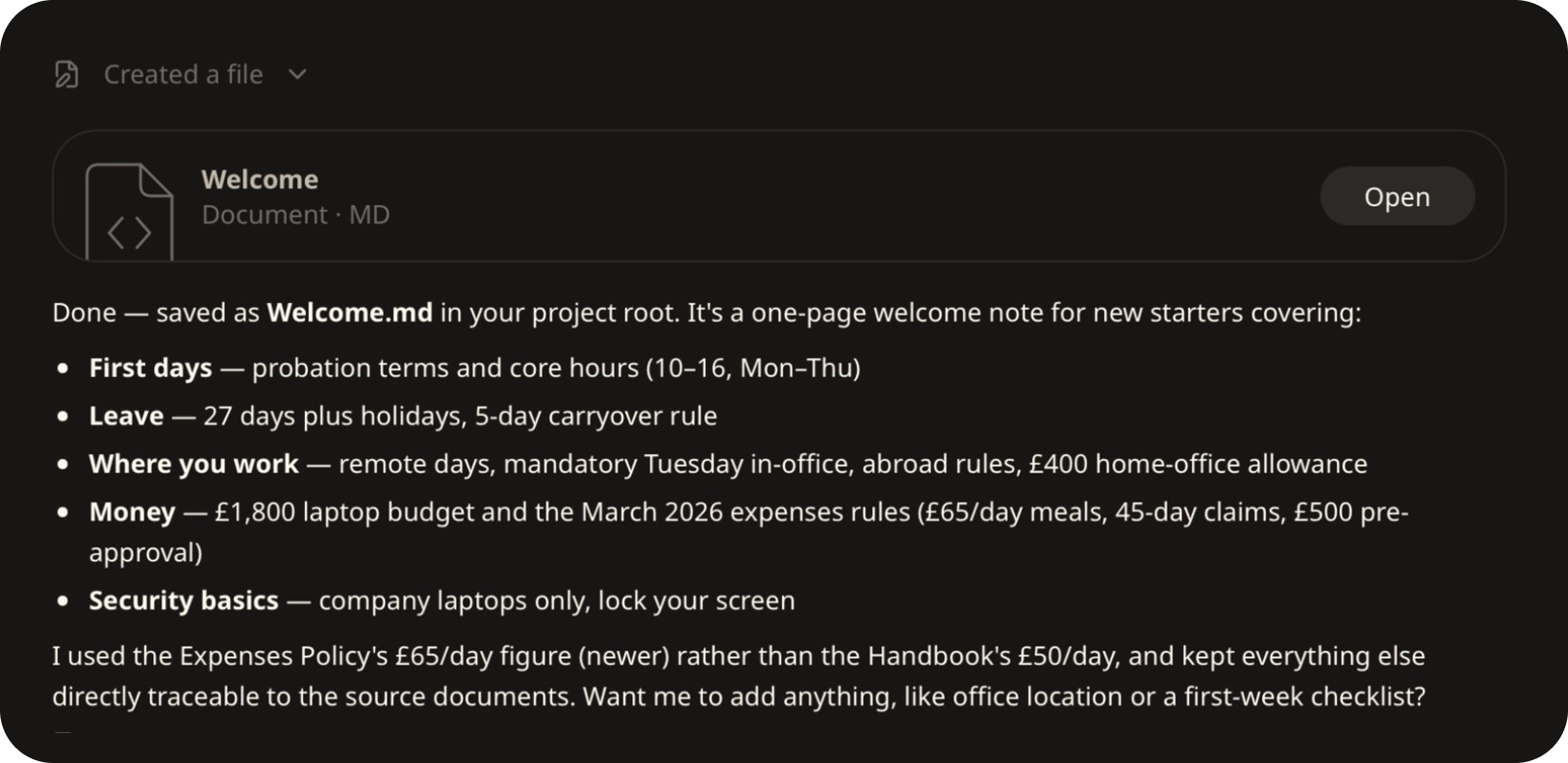
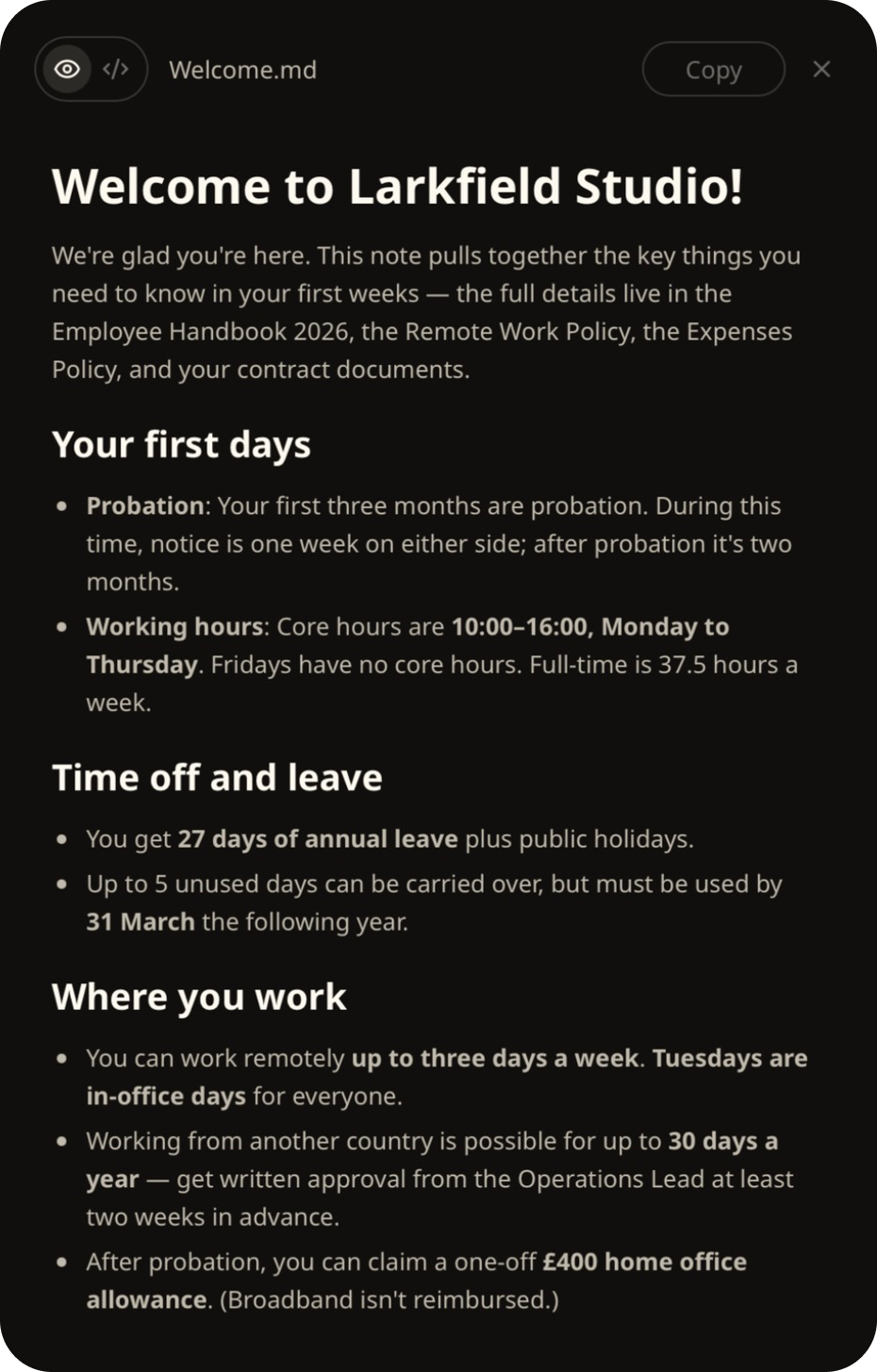
Click Open to read the document inside Wisp. The same file is now in the folder on your computer.
Part 4 — Three habits worth starting with
- Ask for the quote. "Quote the line and tell me which document it's from" turns an answer into something you can check.
- Say "check every document". For a quick question, Wisp may stop at the first file that answers it.
- Keep one project per piece of work. Each project keeps its own chats in the sidebar, so a client's files and conversations stay together.
Why start with your own files
Most AI tools begin with an upload. Wisp doesn't need one: the folder stays where it is, and chats are encrypted and stored on your machine. When Wisp needs a model, the prompt is de-identified in the confidential environment first, and nothing trains on your conversations. That makes it reasonable to start with the real folder rather than a sanitised copy.
Troubleshooting
| Symptom | Cause & fix |
|---|---|
| Wisp says it can't see any files | No project is selected. Check that a folder name shows under the message box. |
| Wisp has stopped and nothing is happening | It's waiting on Awaiting confirmation. Scroll to the buttons and choose one. |
| You can't find the file it wrote | It's in the project folder. Click Open in the chat, or the files icon on the right. |
| The answer doesn't look right | Ask it to quote the line and name the document, then check that line yourself. |
| It only looked at one file | Ask it to "check every document in the folder". |